Put the pieces together
How to study
Study to shew thyself approved unto God, a workman that needeth not to be ashamed, rightly dividing the word of truth. (2 Timothy 2:15)
A tour, step by step
Everything here, in the order you will use it. The pictures are from a phone. On a computer it looks much the same, with more room.
Four doors
Everything on the site is behind four doors. On a phone they are the bar at the bottom of the screen; on a computer they are along the top. Today (the first page) hands you today's verse and today's reading, with Read to open it and Mark read right under it when you finish. Bible opens the Bible where you left off. Sharpen (it was called Explore) is built the way each lesson is: the milk first, then the bread, then the meat, with one rope hanging down the page and every part pinned to it. Milk lays the foundation: New to the Bible? (How to read each kind of book, The Bible's languages, simply), then the twelve foundation lessons in order: It Is Written, I AM, In the Name, In His Own Image, The Word Was Made Flesh, It Is Finished, He Is Risen, By Grace, The Comforter, Buried With Him, One Body and I Will Come Again. A lesson not written yet is shown faint; a few of them lead to a shorter page for now. Bread follows the threads, each one a single thing followed through the whole Bible, starting with That I may dwell among them. Follow it story by story follows one thing through the Bible's stories: Behold the Lamb, The younger above the elder, Jacob, who was called Israel (one man under both his names) and Amalek (a people, every time they appear). On a thread, each part is a card on the rope, and each entry in it is one line: tap Read the verse to open it, with its note, Read it, and Also on when the verse is on other threads too. A part with many entries starts folded: tap its name to open it. Where the threads cross lists the threads that share the most verses. Then Threads through the Bible (Salvation, Promises of God, Prayer, Heaven, Miracles, Prophecies fulfilled, It is written, Angels and spirits, Punished, and why and Seldom told), Follow Jesus (Names and titles, Humanity and divinity, The I am sayings, Words from the cross, Parables, Questions he asked, His prayers, Scripture he quoted, His last week, After he rose, The twelve, His family line, Where he went and Gospel parallels) and Walk in it: the fruit of the Spirit one by one (Love, Joy, Peace, Longsuffering, Gentleness, Goodness, Faith, Meekness and Temperance), Forgiveness, Turning away, and coming back, and If God Be for Us. Meat is Answer from the word: Questions people ask, Said both ways, Where Christians differ, and Church history, coming soon. At the foot are the Tools: Search the Bible, Maps, Well-known sayings, Timeline, which shows how long people lived, the kings of Judah and Daniel's seventy weeks, each part with Dig deeper and every sum and verse under Sources and sums, Every book and chapter and All of Learn. Find a lesson or a thread finds one by name, even by the name it had before. My Study holds everything that is yours: your notes and highlights, Prayers, Learn by heart, Reading plans, Tags and Back up.
At the top of every page, Aa Text makes the words bigger and chooses the colors, and Help opens this page. The bar at the top slides away while you read down a page and comes back when you scroll up; the doors at the bottom of a phone stay put, and step aside while you are picking verses. Reading the Bible, the bar with the chapter name and arrows stays at the top of the screen; it slides away as you read down and comes back when you scroll up a little. The doors at the bottom always stay, so you can go anywhere at any time. On other long pages, Top at the bottom right of the screen takes you back to the top. Back at the bottom left goes back one step along your path, to the very spot you left: the page you came from, the chapter you turned from, the word you were studying, or where you were before you scrolled a long way. The arrow beside it goes forward again. Your path lists every step in this tab, to go straight to any of them, and Put these buttons away hides them until you go somewhere new. Your phone's own Back button moves along the same path.
Every book and chapter of the Bible, under Tools on Sharpen, lists every book; each book and each chapter also has a plain page of its own, easy to share (armedwiththeword.com/john/3), with Open in the Bible for everything else.

Today: today's verse, today's reading with Read, and the four doors at the bottom: Today, Bible, Sharpen, My Study. Find your place
The Bible opens at a chapter: on a computer as the pages of a book, on a phone as the whole chapter on one page (View changes it). Use the arrows at the top to turn the page or chapter, or swipe the pages. The button between the arrows names where you are: tap it for Go to. View, at the right of the bar, chooses how the Bible looks. Halfway down a chapter, scroll up a little and this bar comes back at the top of the screen. Your phone's Back button closes Go to and View, and the big map. Parentheses ( ) in a verse are in the King James text as printed; they set words apart, like a remark made in passing, and a quiet line under the first one in each chapter says so.
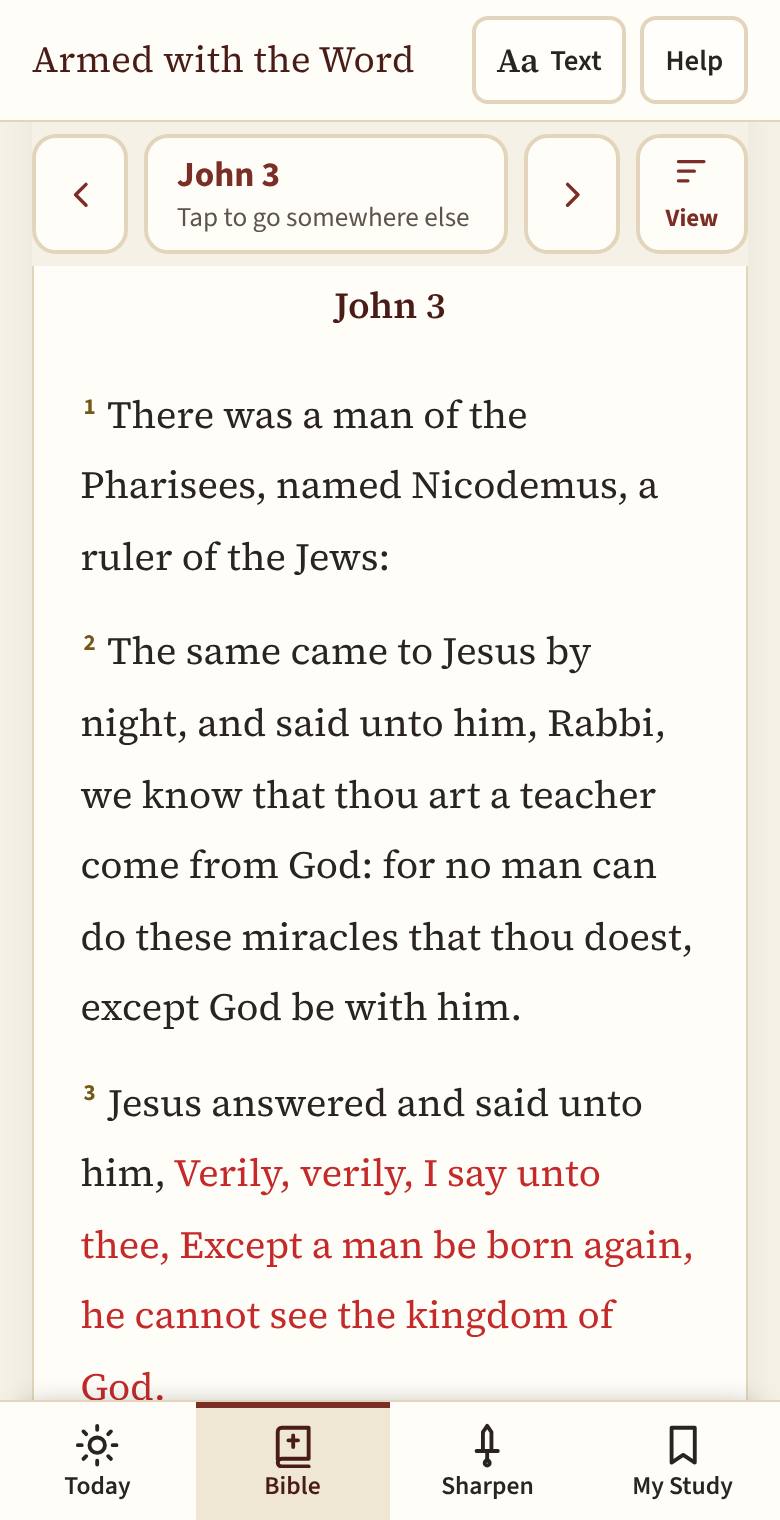
John 3 open on a phone. At the top, the arrows turn the chapter, the button between them names the place, and View is at the right. 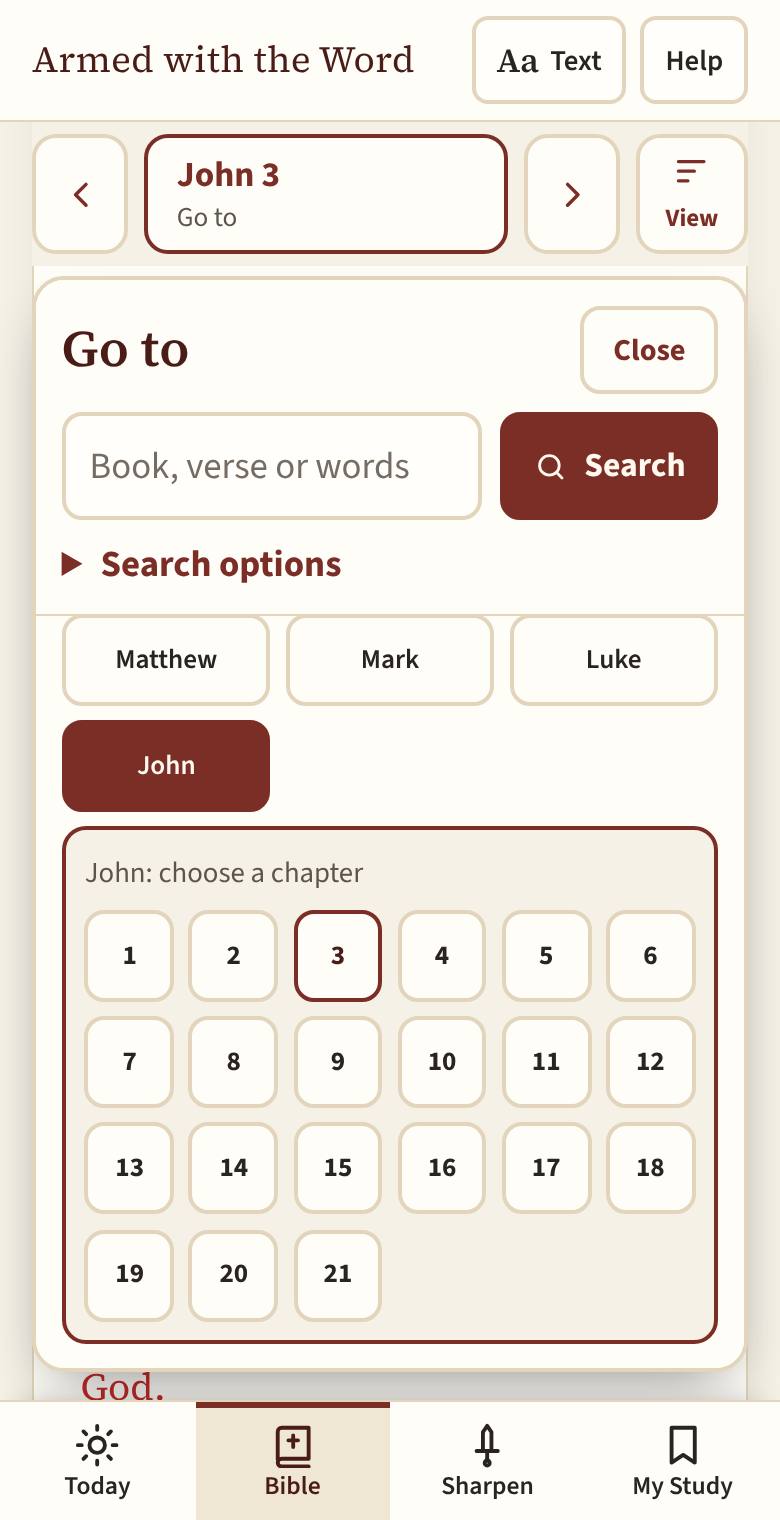
The place button tapped: Go to, with one box for a book, a verse or words, and the books below, John open. Go to is like the contents page of a Bible. At the top is one box: type a book, a verse ("John 3:16", "ps 23") or any words, and it says what it will do before you tap. Lately has the last few places you went to. Below are all 66 books in order, Old Testament then New; tap a book and its chapters open right under it, then tap a chapter. Close puts it away.

Typing in the box: "ps 23" shows what it will do, Read Psalm 23. 
Psalms tapped: its chapters open right under it. Tap one to read it. Search
Tap the place and type in the box at the top of Go to. Type a verse ("John 3:16", "Psalm 23") to go straight to it, or any words to find every verse that has them. Above the verses, On this site shows the lessons, threads and topics that have your words, each linked to its spot. Search one word and its other forms in the Bible show underneath (love: loved, loveth, lovest), with how many verses have each; tap one to add it to the search. Search options chooses all of the words, any of them, or the exact phrase, whole words only, and which books to search. Back to your place takes you back to your reading.
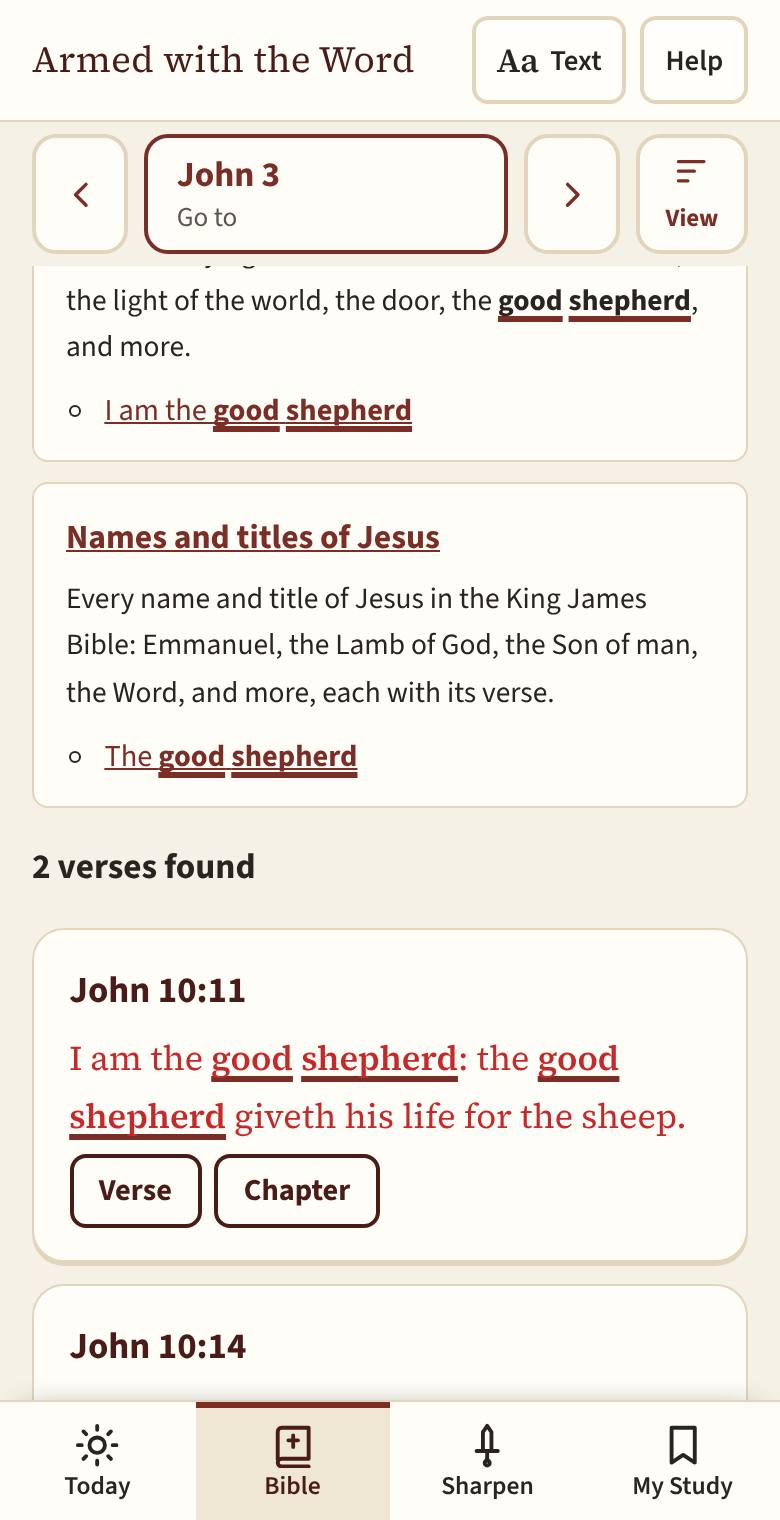
Search for good shepherd: the results under the search box, each verse with the words marked. Choose how it looks
Tap View at the right of the bar. Choose Scroll (how the Bible opens: keep scrolling down and the next chapter follows on its own, after a line naming it; scroll up and the chapter before is there too, so you can read on as long as you like either way. The bar names the chapter you are in, a reading plan's Mark read sits where today's reading ends, and once you have read a long way, Back takes you to where you started), Just the verse you tapped, or Book pages to turn like a printed Bible: it has Ribbons (bookmarks, like the ribbons sewn into a printed Bible, each keeping a place for you), and Show the cover closes the book to its cover. Under Highlights, untick a color to hide it while you read (Show all and Hide all do every color at once). Hiding never removes your highlights.
Under Map while reading, On and Off show or hide the map strip (below). It starts off; tap On to have it.

View: Scroll, Just the verse or Book pages, and which highlight colors show. Follow it on the map
When a chapter is part of a journey (Abraham in Genesis 11 to 23, the Exodus from Egypt to Sinai, Jesus in each Gospel in that Gospel's order, and Paul's three journeys and his voyage to Rome in Acts), a strip under the place button follows your reading: the place reached is in the middle, the last place on the left and the next on the right, with the miles between them (a dashed line went by ship; "by road, likely" means the miles along the likely route, below). As you read on, the next place slides in from the right. The little map at its left shows the whole journey and where you are. Each has an arrow and its verse under it: tap one to go to the verse that names it, and your phone's Back button brings you back to where you were reading.
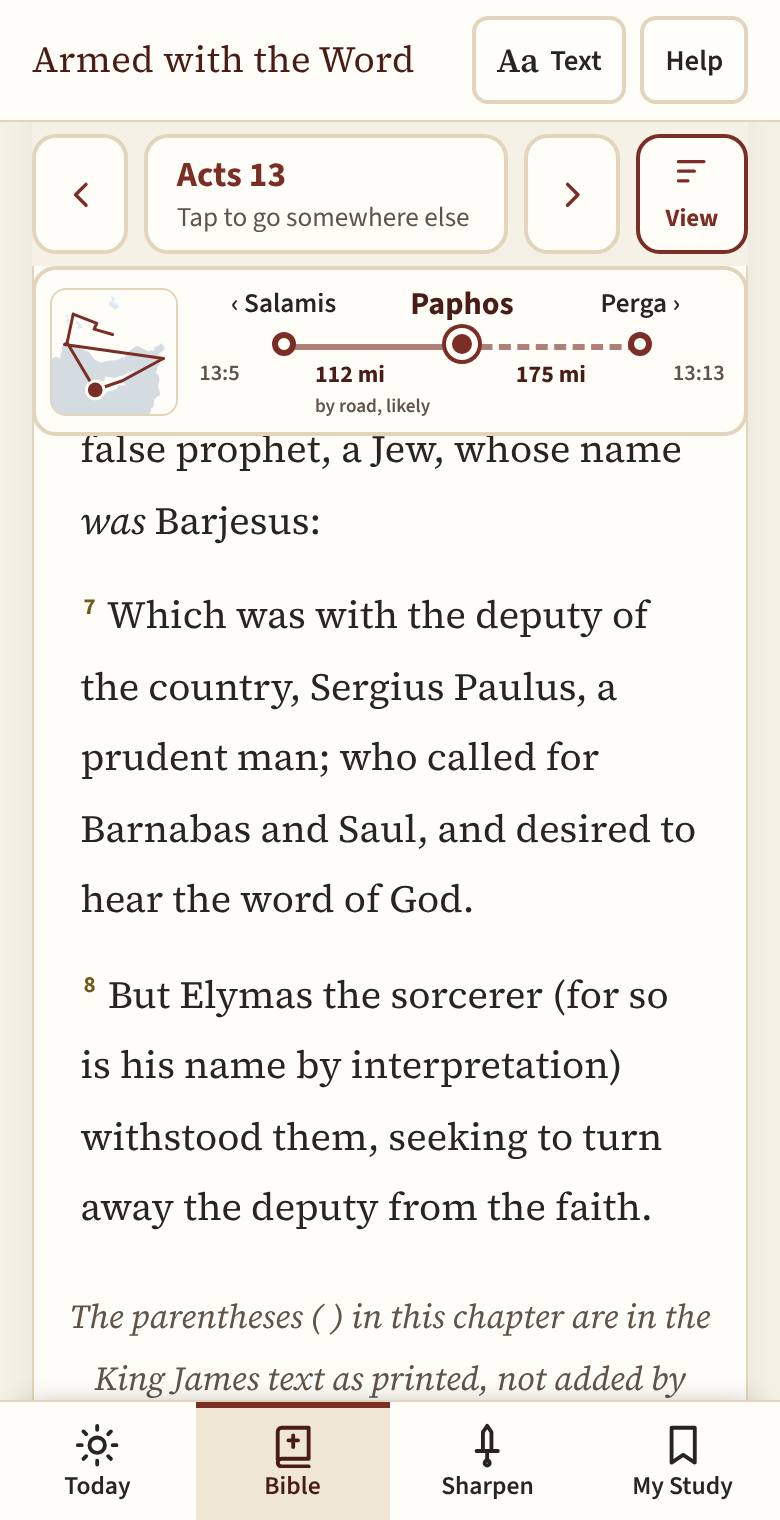
Reading Acts 13 at verse 6: the map strip shows Paphos in the middle, Salamis behind and Perga ahead, and the miles between. Tap the little map or the place reached for the big map. Old borders shows the lands of the time (for the Gospels, Herod the Great's kingdom; for Acts, the Roman empire), Today's borders shows today's borders to compare, Roman roads the roads, and Journey the journey with its miles; each is filled in when it is on. The text almost never names the road, so where the ancient roads join two places the line follows them: a likely route, inferred, with its miles marked "about"; elsewhere the line is straight. mi and km choose miles or kilometers. Key says what each line means (faded lines are the part of the journey ahead of your reading); tap it to fold the key away. Pinch or scroll to zoom, drag to move, or use +, − and Fit. Tap a place for its name, the verses that name it, where it is thought to be today, and how sure that is. Places on this map lists them all; About this map says where everything comes from. Close takes you back to your reading.

The big map of Paul's first journey: the miles on each leg, the Roman empire, today's borders, and Paphos tapped. A chapter that names places but is on no journey has a button instead: Map of the places in this chapter. Where he went opens the big map for each Gospel too.
Tap a verse
Tap any verse and a panel opens at the bottom: the verse and Done, then three big buttons, Highlight, Note and Learn more, and More. More holds Tags, Learn it by heart, Copy and Share. Done closes it.
When a verse is part of a passage with a well-known name, like The Beatitudes, or is where an everyday saying comes from, the panel says so. Tap the name to read about it on Well-known sayings.
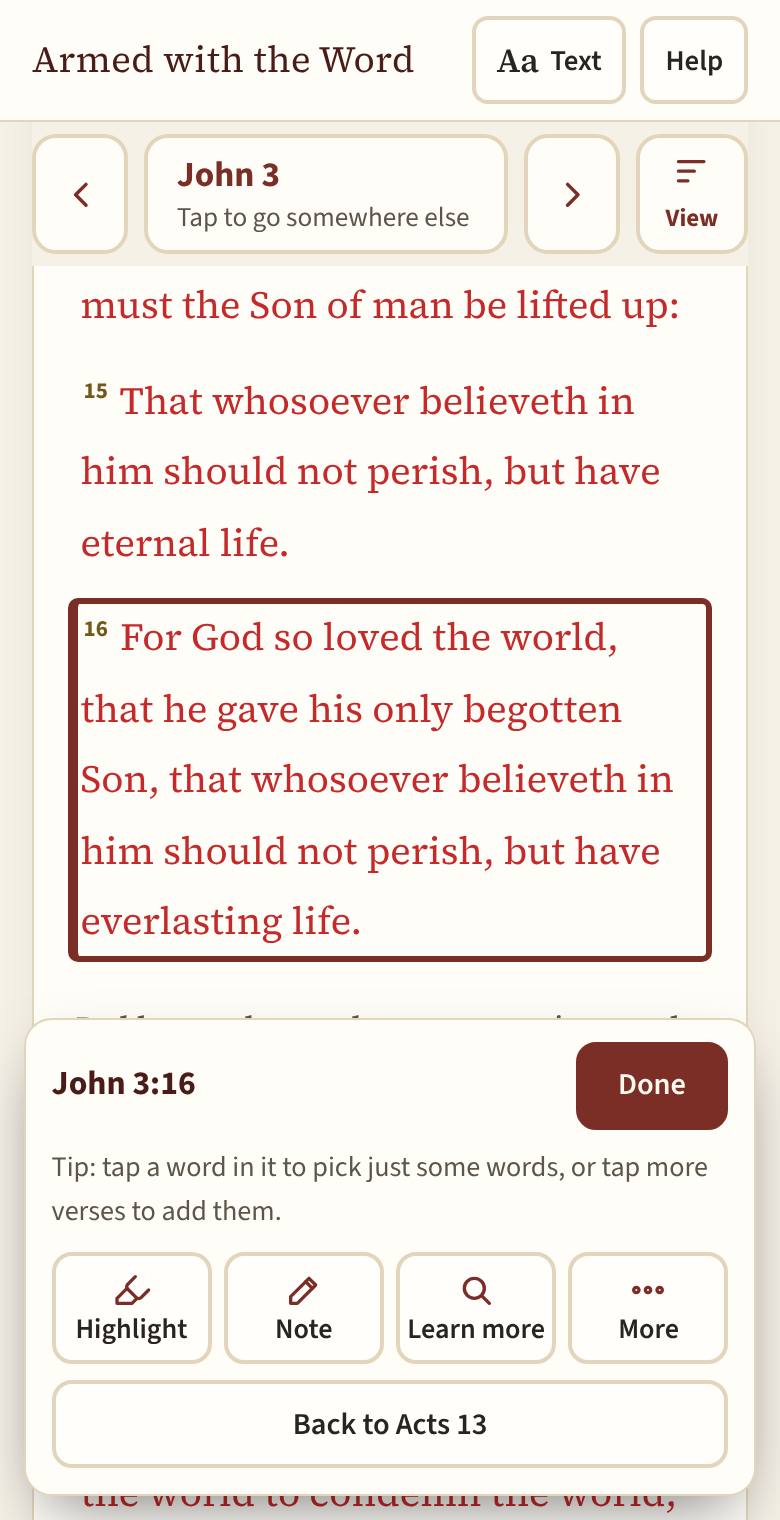
John 3:16 tapped. The verse panel: the verse and Done, then Highlight, Note, Learn more and More. Highlight it
Tap Highlight, then a color. Tap it again, or Remove, to take it off. On My Study, under Settings, Name your highlight colors lets you say what each color means to you ("Promises", "Commands").
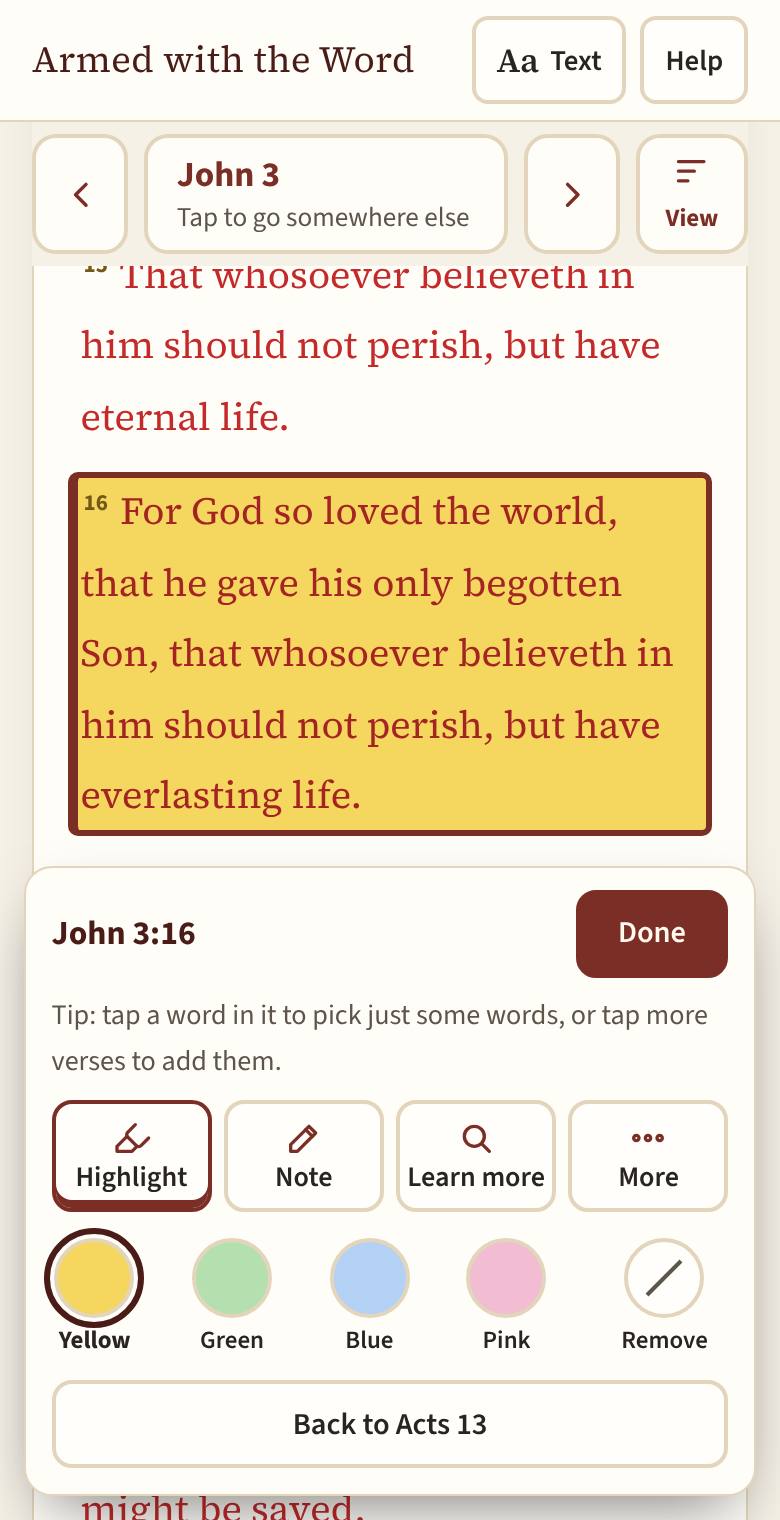
Highlight tapped, then yellow: John 3:16 highlighted. Pick more than one verse
With the panel open, tap more verses to add them, even in another chapter. A color, tag or note then covers them all. Start again keeps only the first verse; tapping a verse's number leaves that verse out.

John 3:16 and 17 picked together. A color, tag or note now covers both. Pick some words
Picking words is picking a verse, then tapping again: with a verse picked, tap a word in it to start there, then tap the last word (it can be in the next verse, or another chapter). Choose a color, or tap Note to write about just those words, or Study the word. Start again clears the words you picked; Whole verse instead goes back to the whole verse.
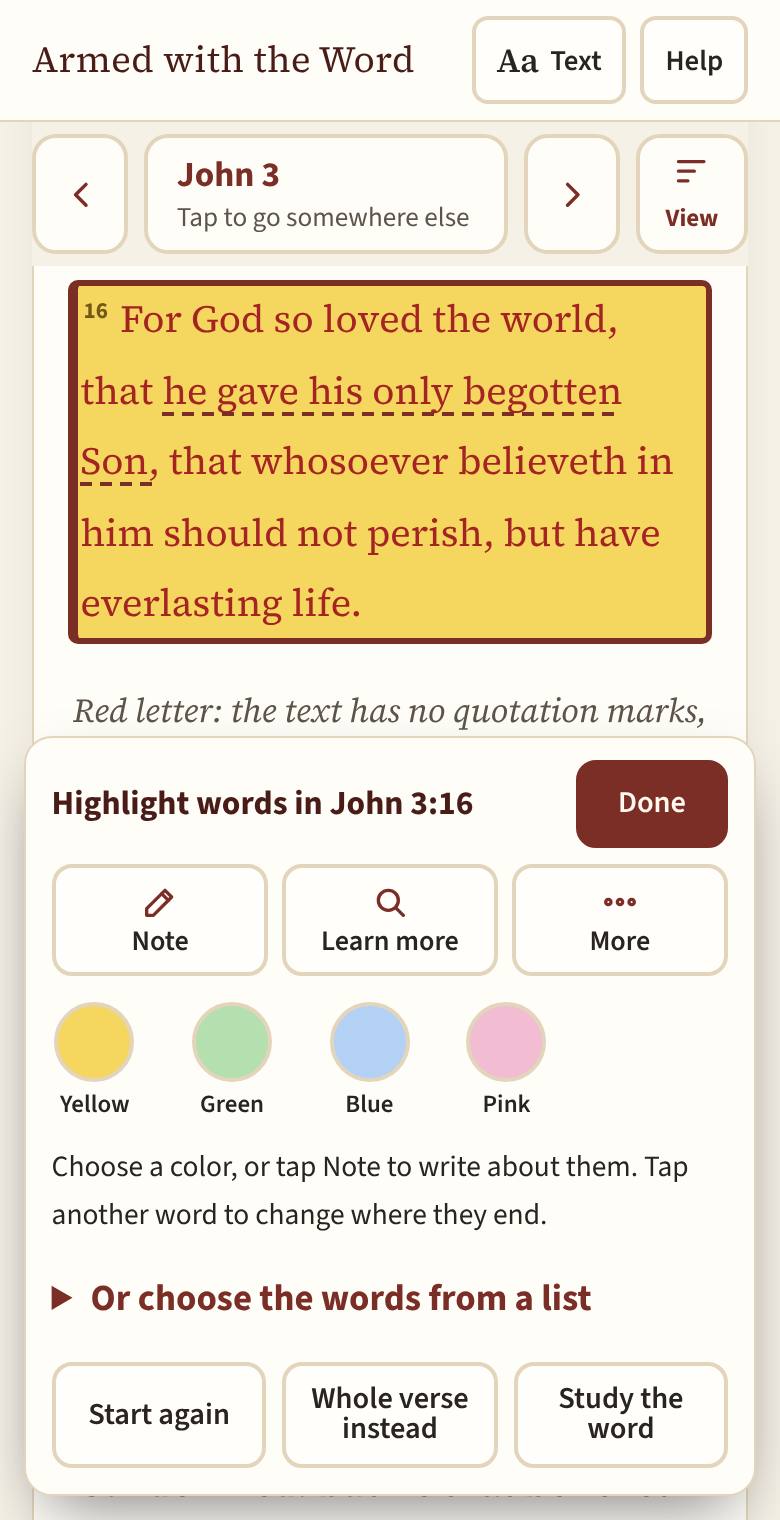
Some words: with John 3:16 picked, its word "he" tapped, then "Son": "he gave his only begotten Son" picked. Write a note
Tap Note. The note opens on its own screen, with the verse at the top so you can see what you are writing about. To help you think it through, tap Study guide headings and choose one: it adds headings to answer. Save keeps it, Cancel closes it without saving, and Delete note (on a note you saved) removes it. On a phone, Back also keeps what you wrote. A small button at the end of the verse opens it again. When a note names another verse ("see Romans 5:8"), that verse lists it too: tap Romans 5:8 and the panel shows the notes that mention it. It needs the verse number: "Psalm 23" alone names the chapter, so it is not listed on each verse.
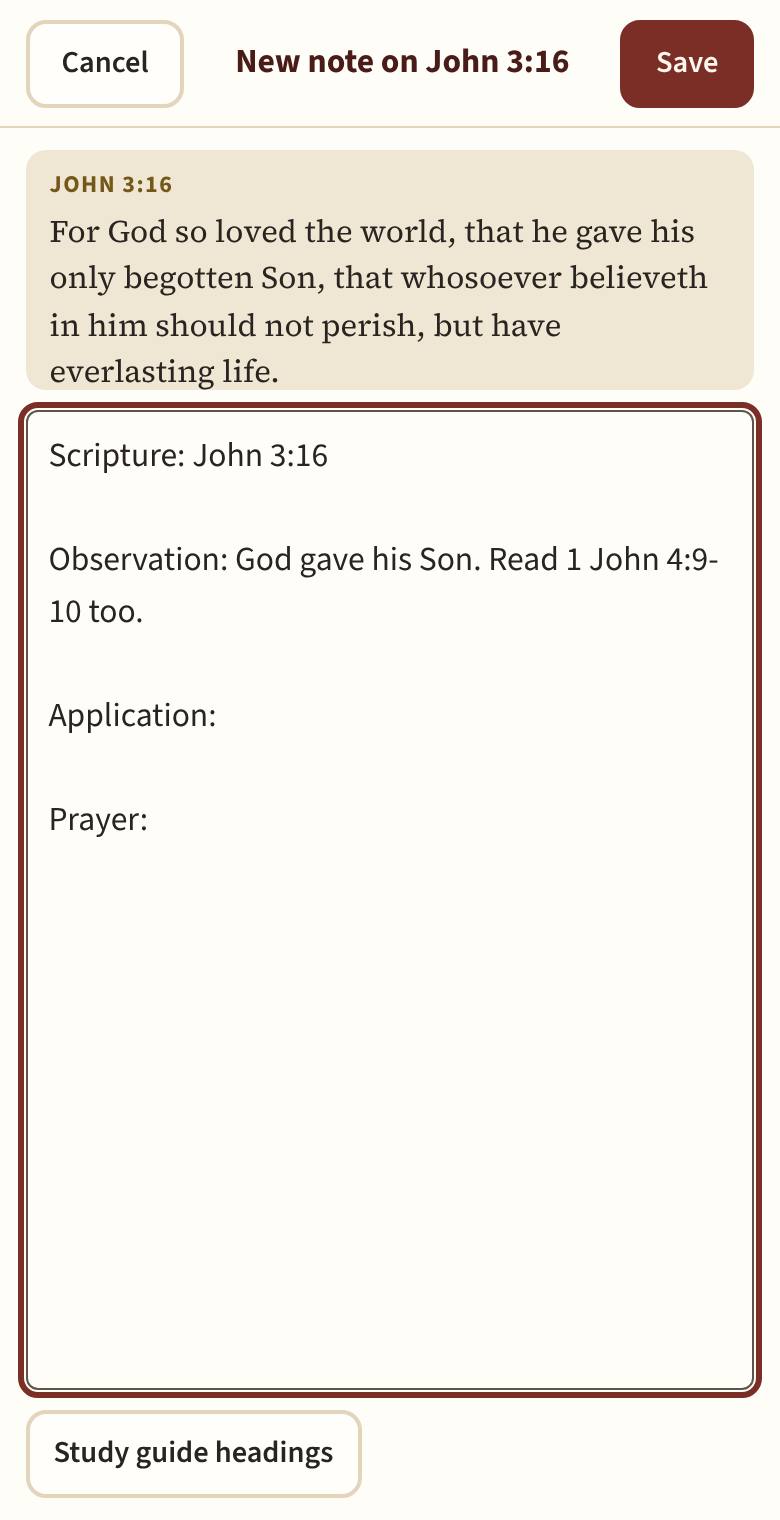
Writing a note on John 3:16 on its own screen: the verse at the top, the SOAP study guide headings added, Cancel and Save. 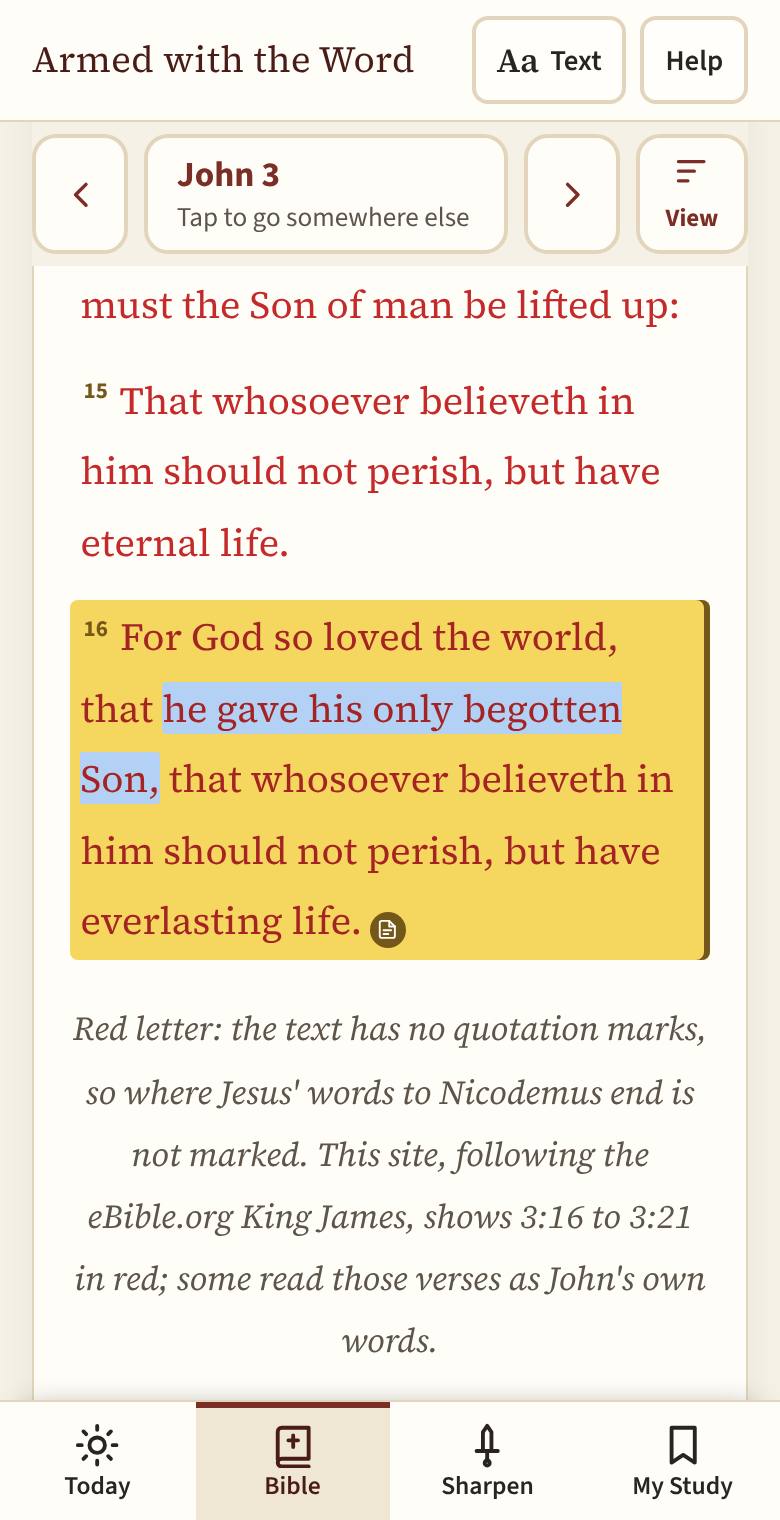
The small note button at the end of John 3:16. Tap it to read the note. Tag it
Tap More, then Tags, type a word like "Love", and tap Add. Put the same tag on verses about the same subject, wherever they are.
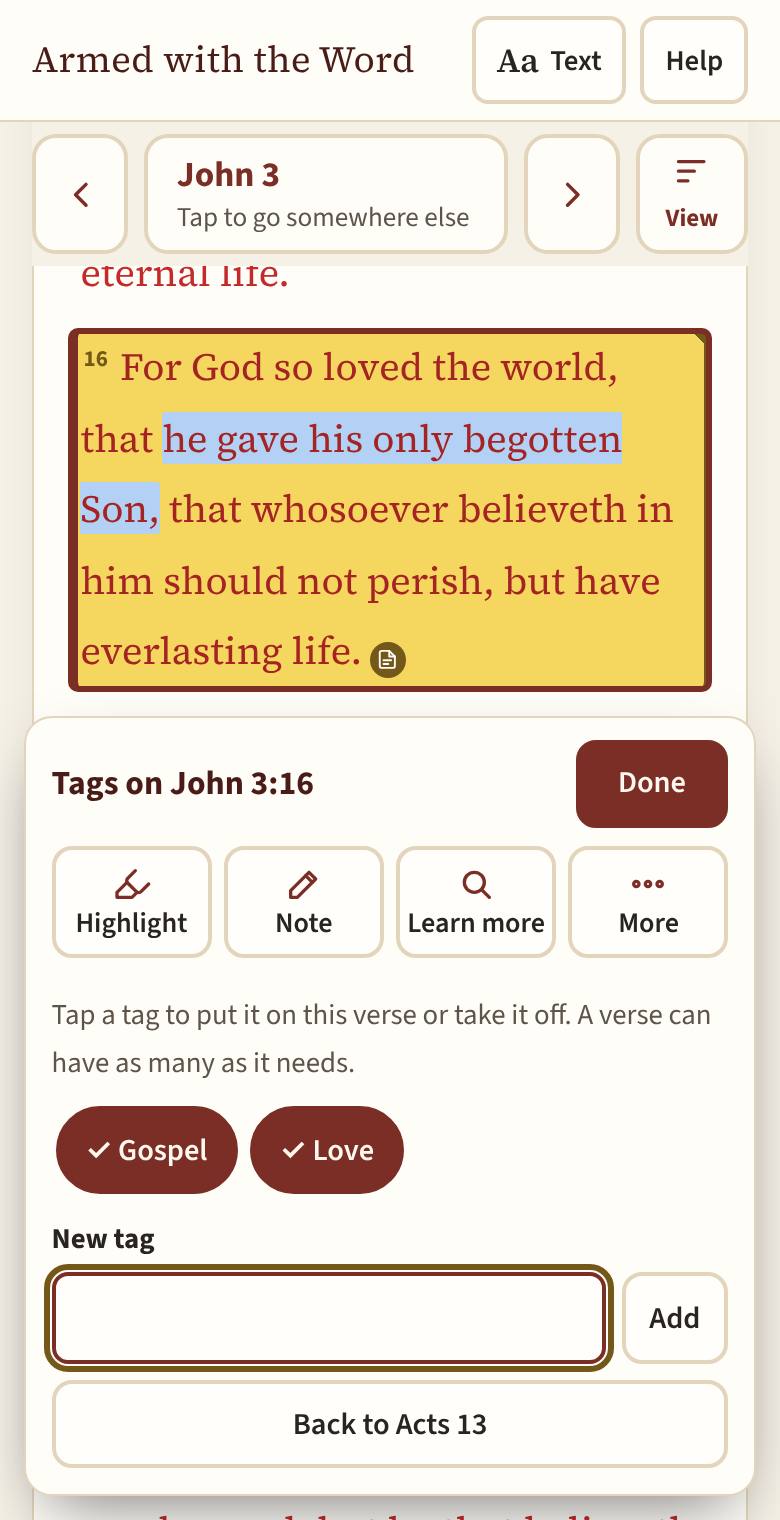
Tags on John 3:16: Love and Gospel. Tap a tag to put it on or take it off. Learn more about it
Tap Learn more (called Resources until October 2026). The verse is at the top; tap any word in it to study just that word. The tabs switch between Cross references, Hebrew and Greek, Matthew Henry (his commentary on the passage the verse is in, with Previous section and Next section to read on), Topics (the topics Nave's Topical Bible lists the verse under, each with every verse in it) and Dictionary (Easton's Bible Dictionary on the people, places and things in the verse: his explanation, not Scripture). Previous and Next go through the verses; Close takes you back to your reading. On a wide screen, Learn more sits beside the Bible and the two follow each other: step in Learn more and the Bible turns to that verse; turn the Bible's chapter, or tap a verse, and Learn more moves with it.
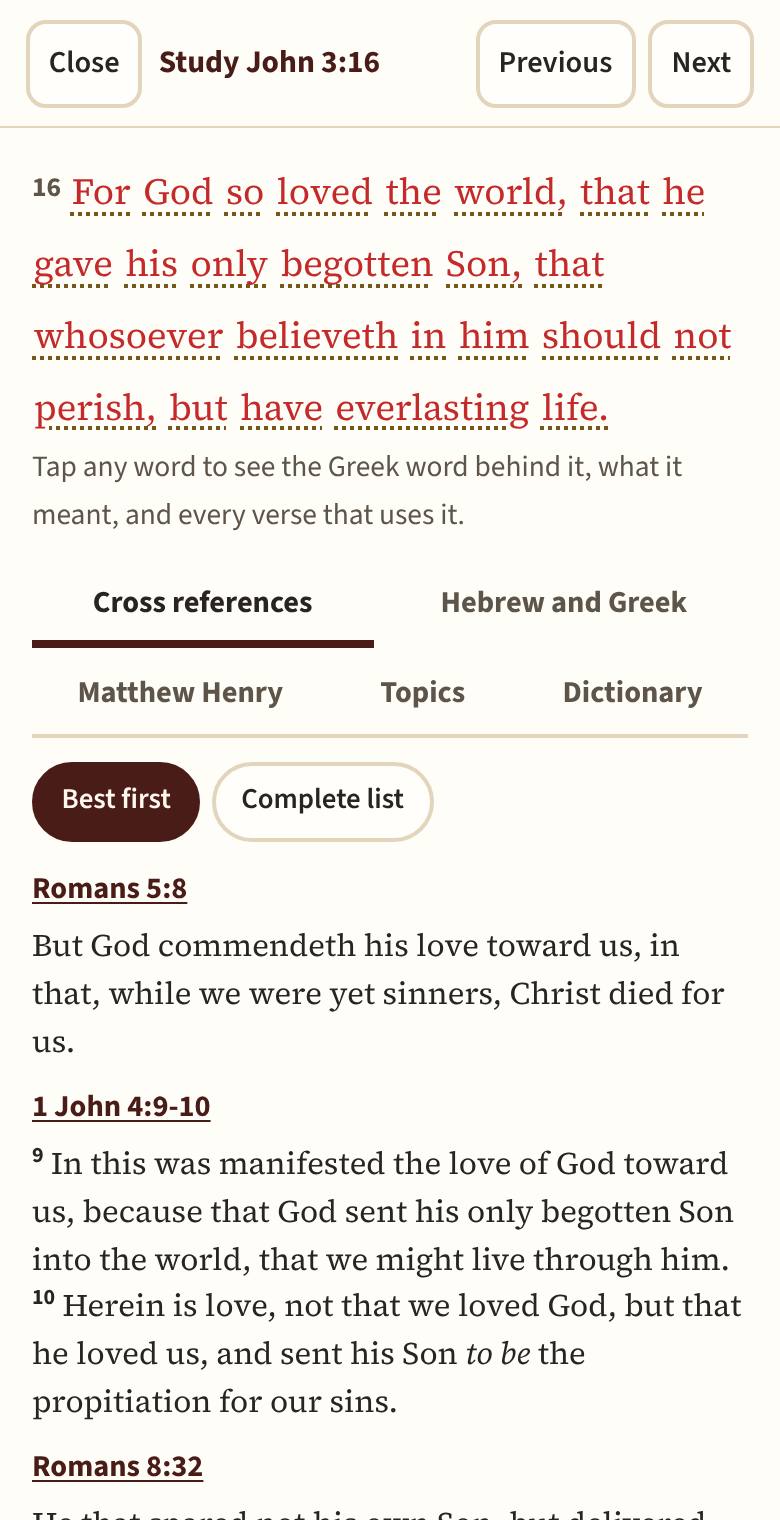
The study screen for John 3:16: the verse at the top, the tabs, and Best first cross references. 
Hebrew and Greek for John 3:16: each phrase with its Greek word and how usual its English is. Learn it by heart
Tap More, then Learn it by heart. On Learn by heart (on My Study), practice it in four steps that hide a little more each time: Read it, Some hidden, First letters, From memory. Come back when a review is due.
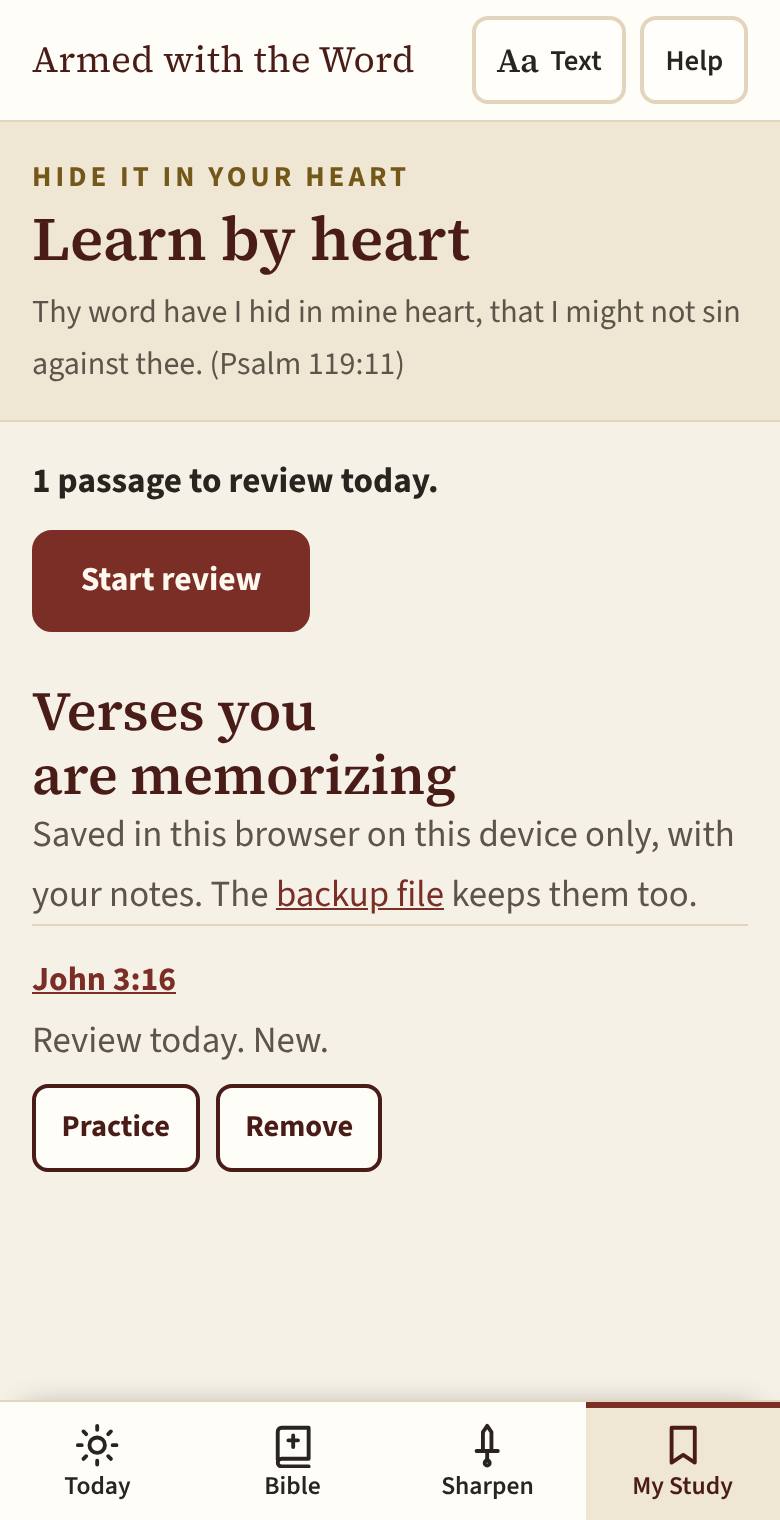
Learn by heart: what is due today, and Start review. 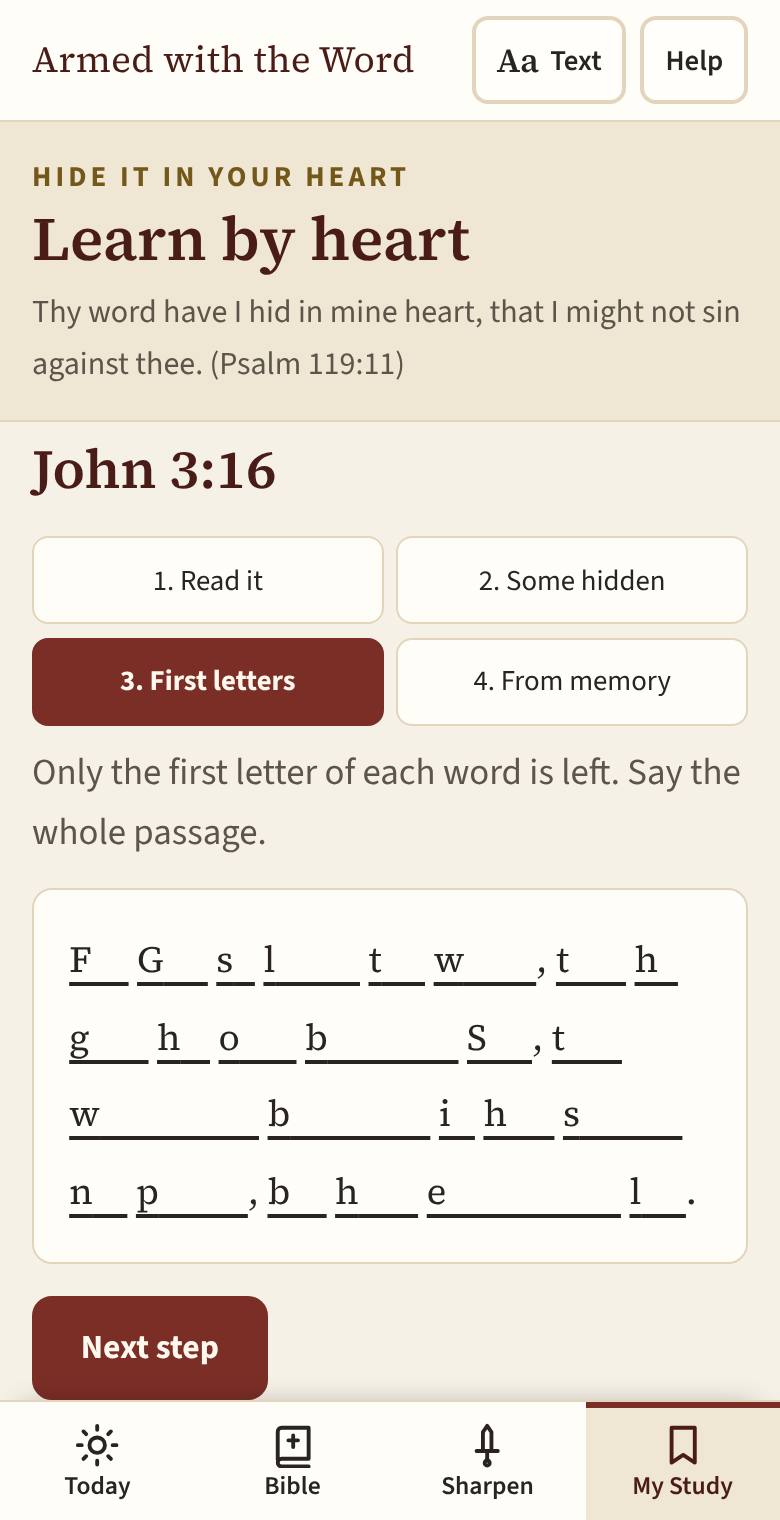
Practicing John 3:16: four steps. Here, the first letters only. Read a little each day
Reading plans (on My Study): The Bible in a year, The New Testament in 90 days, or The Gospels in 30 days. Tap Start this plan, then Read to open the day's chapters and Mark the day read when you finish. In the Bible, under the last chapter of your next day, a Mark day read button does the same without going back to the plans page. A plan waits for you: it shows the next day you have not read and never counts days missed. All days lets you mark or unmark any day, and Stop this plan clears it. Today shows your next day with Mark day read under it; with no plan started, it shows that date's reading in The Bible in a year, and Start The Bible in a year starts it at Genesis 1. Today's verse comes from that date's reading in The Bible in a year; Why this verse? under it says how it was chosen.
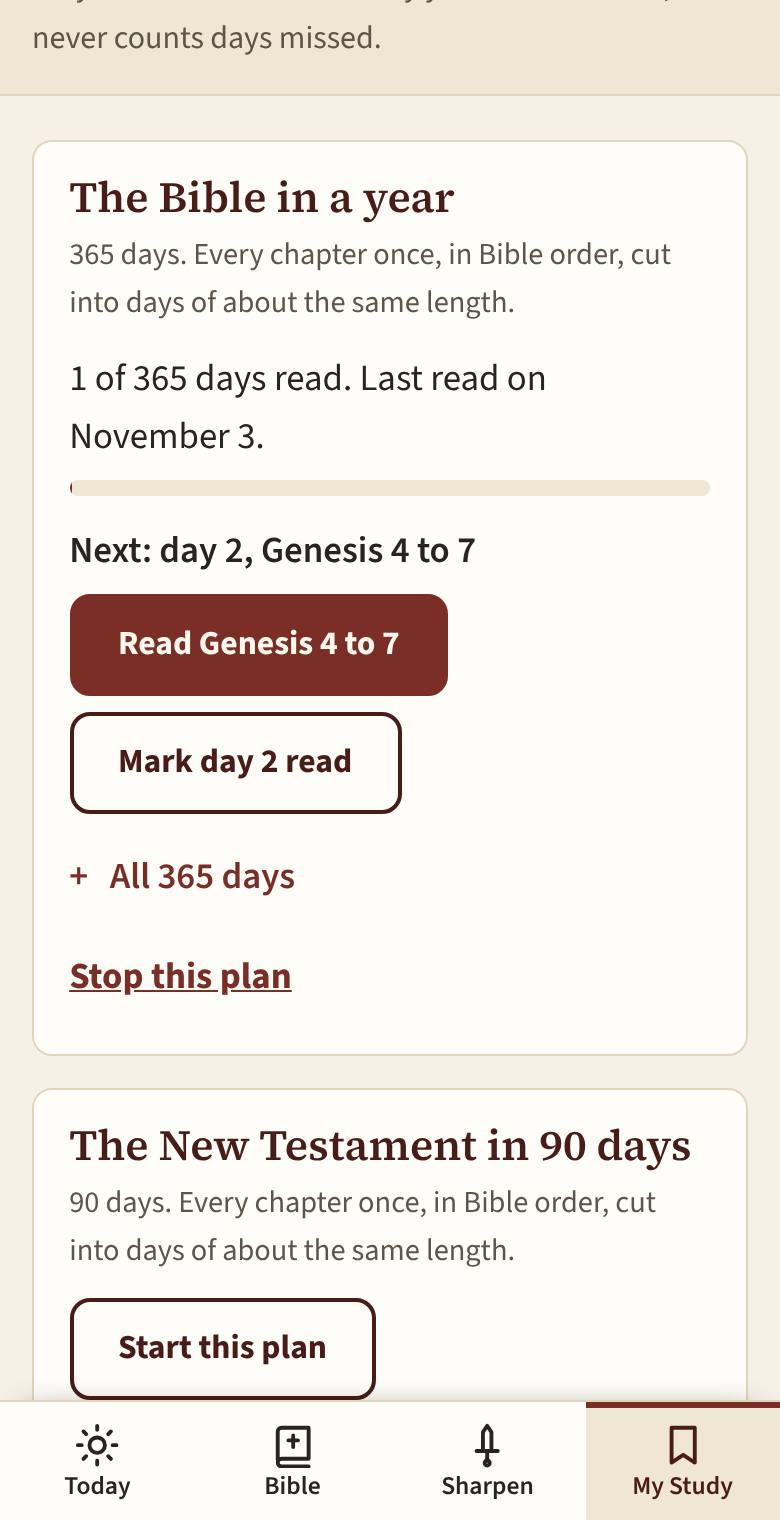
Reading plans: The Bible in a year started, day 1 marked read, and the next day ready to read. Find it all again
My Study (one of the four doors) gathers your notes and marked verses. They are listed by book of the Bible; Sort & show puts the newest first, jumps to a book, or shows only one highlight color or tag. Type in the find box to find a word. Each note's reference opens it in the Bible, and Edit opens it on the note screen.

My Study: the reminder to back up, Sort and show, then your notes by book of the Bible, each with Edit. Keep a prayer journal
On My Study, the Prayer journal: write a prayer and tap Save the prayer. When it is answered, tap Mark answered, set the day, and write what came of it if you like. Waiting, Answered and All choose which show. It goes in your backup file with everything else.

The prayer journal in My Study: a prayer waiting, and one marked answered with what came of it. Back up
Everything is kept only on this device. Now and then, open Back up under Settings on My Study, tap Save a backup file, and keep the file somewhere safe. Until you do, My Study reminds you at the top. On a new phone, Choose a backup file brings it all back.
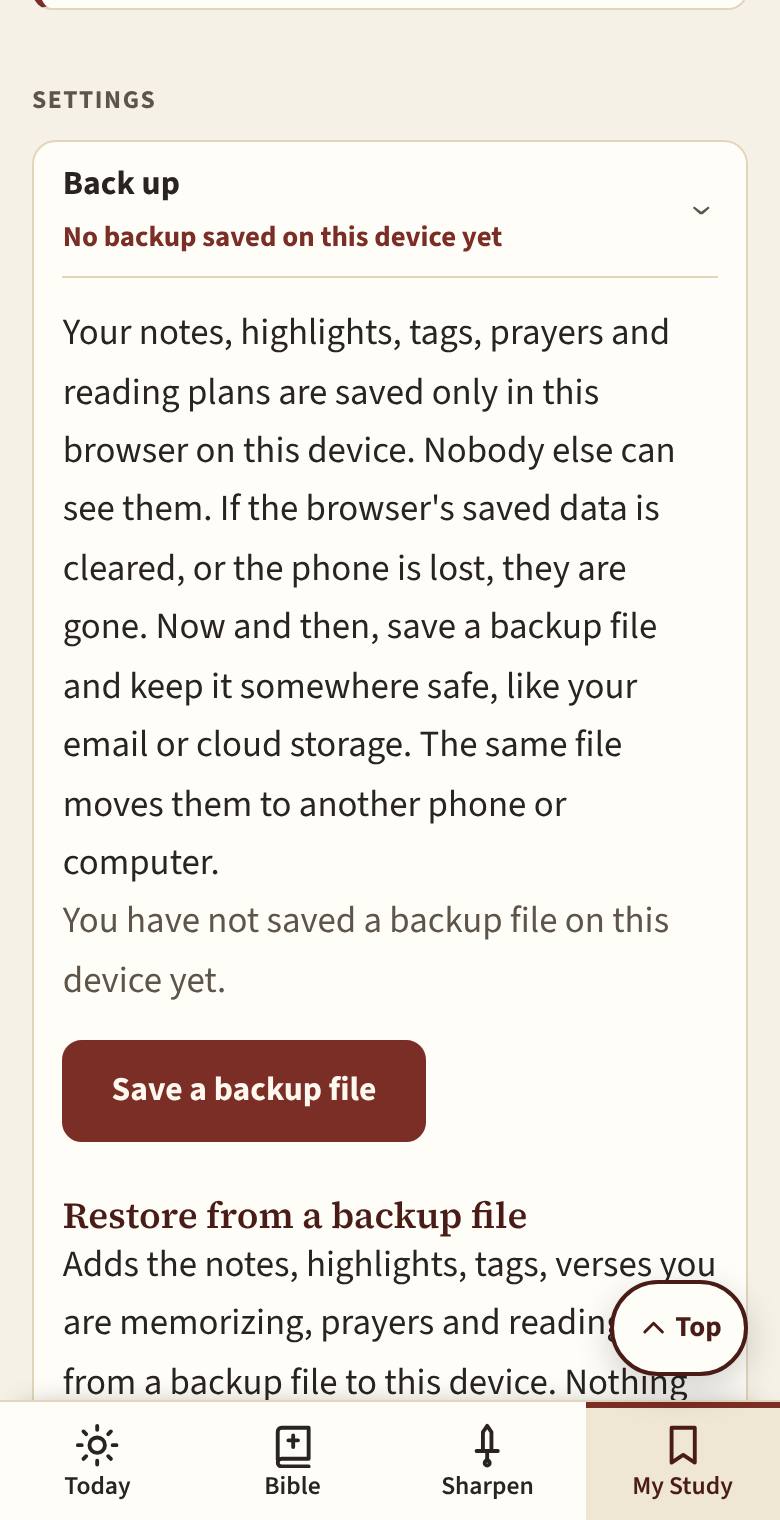
Back up: save a backup file to keep your notes safe or move them to another phone. Choose your resources
At the end of My Study, under Settings, open Learn more: each one has Show it in Learn more to switch it on or off, and Save for offline to keep it on this device so it works with no internet. Matthew Henry keeps each book of the Bible you open in it, and Save all of Matthew Henry keeps the whole commentary.
Counting visits
The site counts visits (which page, phone or computer, where a visitor came from), with no cookies and nothing that names you. Under Settings on My Study, Counting visits has Count my visits on this device: switch it off to leave your own reading out of the numbers. An installed app has its own settings, so set it there too.
Make it yours
Tap Aa Text at the top of any page: Text size makes the words bigger, Words of Jesus chooses how his words look, Moving threads chooses whether the rope on Sharpen and the threads Hang still (as they come) or Swing as you scroll, and Colors chooses one of the site's looks: the everyday ones (Match my device, Parchment, Night, Clean and High Contrast) are shown as color dots, and More looks opens all the others, in their groups. Under Pixel are four looks like the old video games, every word in blocky letters, with buttons that press in and a sparkle when you highlight a verse; with one of them on, Scripture letters can put the Bible's words back in the normal reading letters. Your Home Screen icon takes the colors you pick when you add the site; to change it later, remove the site from your Home Screen and add it again.

Aa Text: the text size, the words of Jesus, and the colors.
Look closer at a word
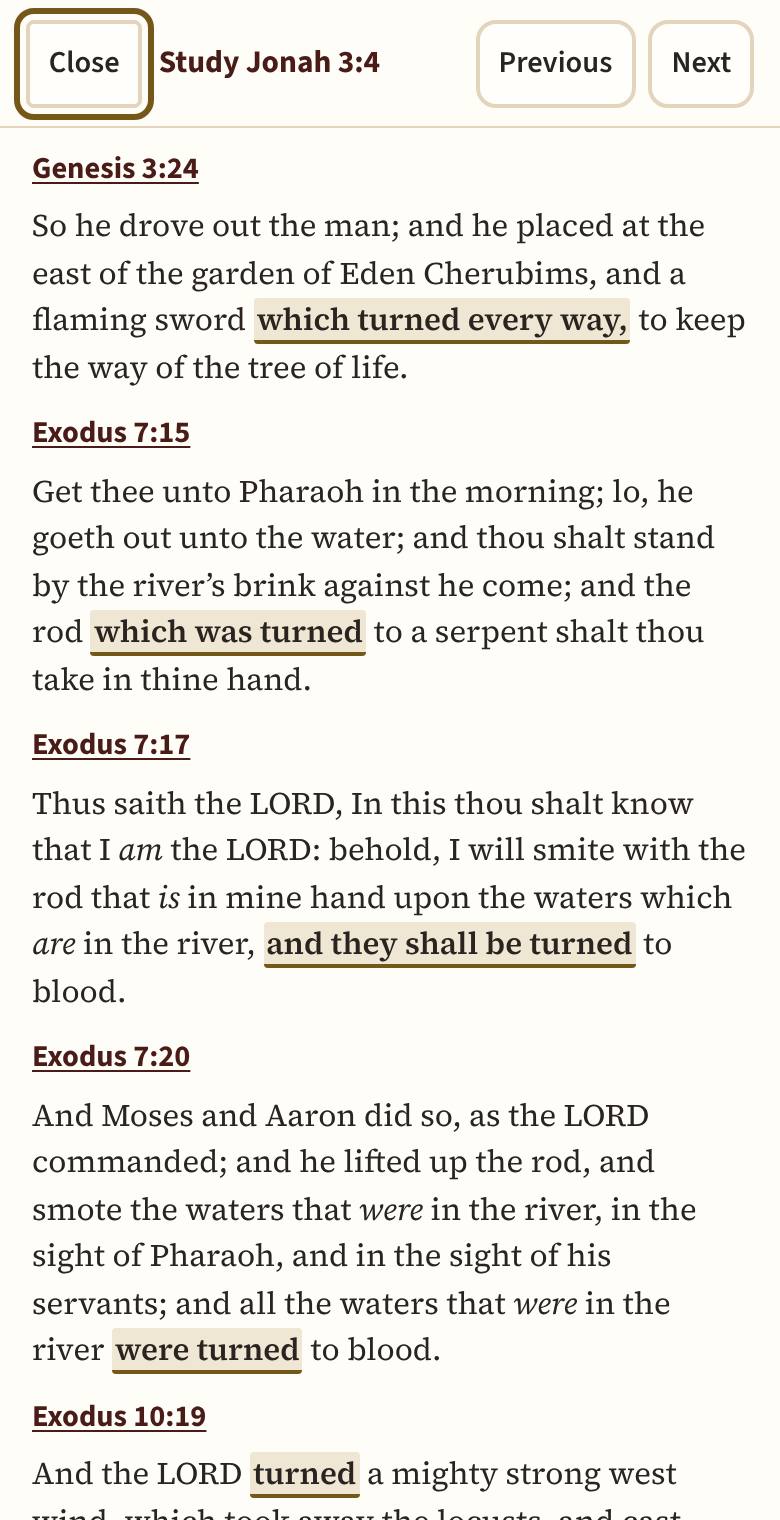
An example: Jonah 3:4. Yet forty days, and Nineveh shall be overthrown.
- Open Jonah 3 and tap verse 4. In the panel, tap Learn more.
- The study screen opens with the verse at the top. Tap the word overthrown. Now you are studying that one word. (Tap it again to go back to the whole verse.)
- Tap Hebrew and Greek. The word behind "overthrown" is the Hebrew hâphak, with how to say it and what it meant, from Strong's dictionary: "to turn about or over; by implication, to change, overturn, return, pervert". (The words you can tap are lightly underlined.)
- Under it, Every verse where it is "overthrow" (12) opens every verse where the King James has "overthrow" for this word. The buttons under it open the other English words it is translated by, like "turn" (64); Other ways holds the rest.
- The word is marked in each verse. Tap a verse to read it in the Bible; Back brings you back here, the list still open. Read them, and read the verses around Jonah 3:4.
- Under the word is the whole verse, phrase by phrase, so you always see it in its place.

Details holds Strong's number (H2015 here), Strong's own entry, and the counts: hâphak is used 94 times, translated "turn" 64 times (Most often) and "overthrow" 13 times (Sometimes), with a few others. A verse can use a word more than once, so a list can hold fewer verses than the times. The labels tell you how often the King James translates a word each way, across the whole Bible:
- Most often
- the way it is translated most
- Often
- a quarter of its uses or more
- Sometimes
- between 1 in 10 and a quarter
- Seldom
- under 1 in 10, but more than once
- Only once
- the only place it is translated this way
This shows you the facts: the word, every place it is used, and how it is translated. What it means in a verse is for you to weigh, from the verse and the verses around it. When you find something, write it in a note (see Keep what you find).
Follow a thread through the Bible
- Tap a verse, then Learn more. Cross references shows other verses on the same words and subjects.
- Best first lists the ones readers at OpenBible.info found most helpful. Complete list is the Treasury of Scripture Knowledge (about 1880): its references word by word through the verse, with its notes.
- Each reference shows its words. Tap the reference to go to that verse and read it in its chapter. Then tap that verse and Learn more again to keep following the thread.
- On the study screen, Previous and Next step through the verses around it. If you picked more than one verse before tapping Learn more, they step through just the verses you picked; if you picked some words, they step through those words one at a time. Close (or your phone's back) returns to your reading.
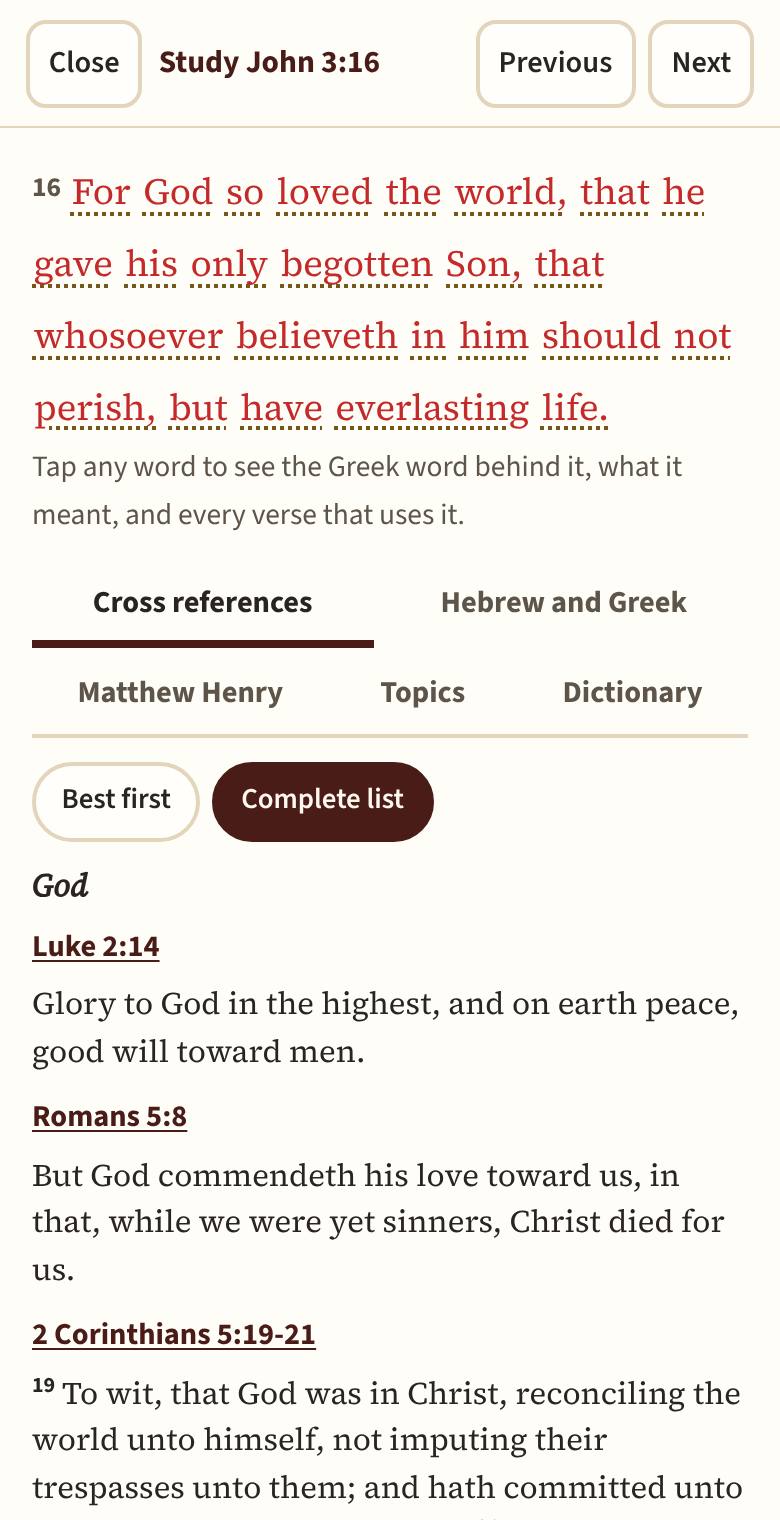
With one word picked, the Complete list shows the Treasury's references for that word, when it has some.
Well-known sayings starts from the other end: names and sayings people know, like the Fruit of the Spirit or "the salt of the earth", each with the verses it comes from. It also lists sayings often thought to be in the Bible that are not, and where they came from.
Words of Jesus. His words are in red, in the Bible and wherever the site quotes him. Words of Jesus under Aa Text at the top has three choices: In red, In red, bold (a little heavier, with a soft shadow, so they stand off the page), or Same as the rest. Which words are his follows the eBible.org King James, which marks them; the King James of 1611 printed none in red, so this is an editor's choice. At John 3:16 a note says where readers differ.
Every thread (Salvation, Miracles, Promises of God, the Jesus pages and the rest, all on Sharpen) hangs on a rope down the left of the page, each entry pinned to it; the rope swings a little when you scroll, and hangs still if your device asks for less motion. Where an entry's verse is also on another thread, a second rope crosses under it with Also on and the names of those threads: tap one to follow it. Each one, and Well-known sayings, has a Search this page box at the top: type a word, a name or a verse, and only the entries holding all your words stay, with how many matched. Clear (or Escape) brings them all back. Tap any verse quoted on these pages to open it in the Bible with the verse panel open, ready to highlight it or write a note; Back brings you back to the same entry. Your highlights show on the quotes too, the whole verse or just the words you picked. A long page also opens with a list of its parts to jump to. On Promises of God, each promise says who it was said to, so one made to Abraham or to Israel is read as the text gives it. Salvation opens with what the word means, from Webster's 1828 dictionary, the Hebrew and Greek, and the Bible's own words; where readers answer a question differently (can it be lost, baptism, choosing), each side has its own place with every verse it reads, labeled as how that side reads them.
Keep what you find
- Highlight with a color. To highlight just some words, tap a word in the picked verse first, then the last word.
- Note: tap the verses (or pick the words) first, then Note. A note can cover several verses, even across a chapter. A verse can have as many notes as you like. To help you think it through, tap Study guide headings and choose one, like SOAP (Scripture, Observation, Application, Prayer): it adds those headings for you to answer.
- Tags: put the same tag on verses about the same subject, wherever they are.
- Open My Study: your notes and marked verses, by book of the Bible or newest first.
- Save a backup file now and then (on My Study, Back up). Everything is kept only on this device, and the file is how you keep it safe or move it to another phone.
Make it stick
- Tap a verse (or several in a row), then More and Learn it by heart.
- Open Learn by heart (on My Study). Each verse has four steps: read it, then some words hidden, then first letters only, then from memory.
- Come back when it says a review is due. Reviews are spaced further apart as you remember a verse, so it lasts.
What the resources can and cannot tell you
- The resources show facts and sources, and say where each one comes from. They never suggest a new translation.
- Matthew Henry is different: it is a commentary, one man's view of what a passage means, written about 300 years ago. It is labeled that way wherever it shows. Henry died with the work reaching through Acts, so Romans to Revelation were completed by other ministers after his death.
- The Hebrew and Greek counts come from a King James text with Strong's numbers on its phrases (CrossWire). For most words it marks nearly every place. For some very common small words it marks only some places. When that happens the word's page says so, and how many of its places the counts are from.
- Strong's numbers sit on phrases, so one Hebrew or Greek word can stand behind a few English words ("shall be overthrown"). Words in italics were added by the translators so the English reads clearly. They have no Hebrew or Greek word behind them.
- The maps show where scholars think each place was, from OpenBible.info, and say how sure that is; a ring instead of a dot is a place less sure, and the miles to or from a ring say "about". Maps (under Study) opens any journey, or the places in any chapter that names them, without going through the Bible. For most of the Old Testament the button reads Old land names: the lands are named where they were, but no borders are drawn before the Persian empire, since where they ran is not known. Journey lines join the places in the order the text names them. Where the ancient roads join two places, the line follows the shortest way along them: a likely route, inferred, not a record of the way they went. Many roads in Judaea and Galilee were built or paved after the time of Jesus. Where the text itself says the way, it wins; elsewhere the line is straight. Old borders come from the Ancient World Mapping Center and are labeled with their date; no borders are drawn for the Old Testament. Today's borders are drawn as they are held now, and the maps take no side where they are disputed.
- The resources are not part of the copy of the site this device keeps for offline use. Each loads over the internet the first time you use it, unless you save it on My Study.
Tips
The first time you open some parts of the site, a short tip says what they do.